- Published on
이벤트
- Authors

- Name
- 최영준 (Youngjun Choi)
🧨 이벤트
이벤트는 말 그대로 사건을 의미한다. 언제 어떤 순서로 발생할 지 모르기 때문에 이벤트를 감지할 수 있어야 하고, 감지하고 나서 어떻게 처리 할지에 대해 정해야 한다. 우리가 사용할 때 브라우저에게 이벤트 핸들러를 등록함으로써 이벤트를 위임해 브라우저가 이벤트를 감지하면 해당 핸들러에 등록한 함수를 실행함으로써 이벤트를 처리할 수 있다. 적절한 이벤트로 더 다양한 기능을 구현하기 위해 이벤트에 대해 정리해 보고자 한다.
🙂 이벤트 타입
이벤트는 사용자와 다양한 interaction이 가능하기 때문에 풍부한 사용자 경험을 만들어 줄 수 있다. 하지만 제대로 이해하지 않고 사용한다면 너무 많은 이벤트로 성능을 떨어뜨리거나, 원하지 않은 곳에 이벤트가 발생하기도 한다. 그래서 이벤트 자체에 대해서도 이해가 필요하다.
예를 들어 같은 마우스 이벤트더라도 mouseenter와 mousemove는 해당 요소에 마우스가 들어갔을 때와 움직일 때로 동작을 보면 크게 다르지 않아 보이지만, 만약 api fetching하는 함수가 등록되어 있다면 mouseenter 의 경우 엄청나게 많은 비용이 들게 된다. 그렇기 때문에 목적에 맞게 이벤트와 연결하는 것이 너무나 중요하다.
<!DOCTYPE html>
<html lang="en">
  <head>
    <meta charset="UTF-8" />
    <meta http-equiv="X-UA-Compatible" content="IE=edge" />
    <meta name="viewport" content="width=device-width, initial-scale=1.0" />
    <title>Document</title>
  </head>
  <body>
    <button>sensor</button>

    <script>
      const btn = document.querySelector("button")
      // btn.addEventListener('mousemove', () => {
      //   console.log('move');
      //   console.log('data fetching'); // 센서 안에서 마우스가 움직일 때마다 호출
      // });
      btn.addEventListener("mouseenter", () => {
        console.log("enter")
        console.log("data fetching") // 센서로 마우스가 들어갈 때마다 호출
      })
    </script>
  </body>
</html>
적절한 이벤트를 붙여줘서 해결할 수도 있지만 무한 스크롤과 스크롤 이벤트에 api 호출을 연결해야 하는 경우도 있다. 이럴 때는 Throttle과 Debounce 두 가지 방법을 이용해 이벤트를 제어할 수 있다.
Debouncing
디바운싱은 연속적으로 호출되는 이벤트 핸들러 중에서 처음 또는 마지막에 호출되는 함수만 호출되는 것을 의미한다.
예를 들어 검색 창에 사용자가 입력한 결과에 따라 api를 호출해 결과를 받아온다면 input의 onchange로 그냥 호출하게 되면 사용자가 입력하는 한 글자, 한 글자 모두에 api 호출이 되기 때문에 불필요한 비용이 발생한다.
<body>
  <input id="input" />
  <script>
    document.querySelector("#input").addEventListener("input", function (e) {
      console.log("여기에 ajax 요청", e.target.value)
    })
  </script>
</body>
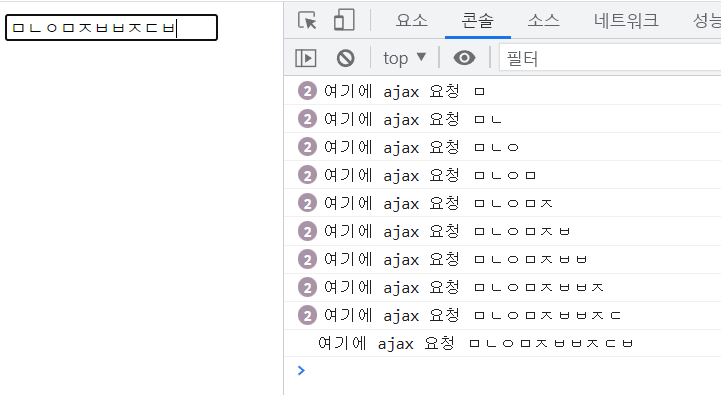
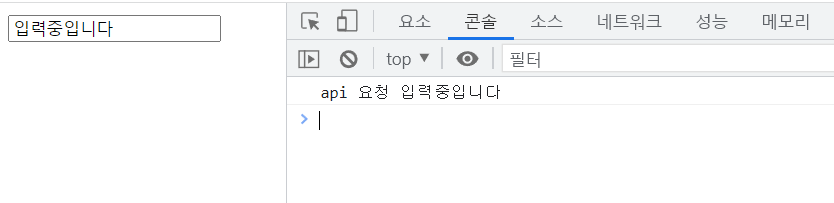
이것을 막기 위해서 디바운싱을 이용해 입력하는 중에 200ms동안 입력이 없다면 입력이 끝났다고 간주하고 api를 호출하게 한다면, api 호출 비용을 아낄 수 있다. 이벤트 핸들러는 입력이 될 때마다 timer에 함수가 있는지 체크하고, 있다면 초기화 시켜 새롭게 입력한다. 200ms 동안 입력이 없다면 timer의 callback 함수가 실행된다.
<html lang="en">
  <body>
    <input id="input" />
    <script>
      let timer
      document.querySelector("#input").addEventListener("input", function (e) {
        if (timer) {
          clearTimeout(timer)
        }

        timer = setTimeout(function () {
          console.log("api 요청", e.target.value)
        }, 200)
      })
    </script>
  </body>
</html>
Throttling
Throttling은 일정 시간 동안 발생할 수 있는 실행 횟수에 제한을 거는 방식이다. 앞서 언급했던 무한 스크롤과 같이 스크롤 이벤트로 api를 호출해야 한다면 계속해서 내릴 때마다 서버로부터 데이터를 받아 와야 한다. 이때 Throttling을 이용한다면 일정 시간 당 한번만 api가 호출되기 때문에 성능을 개선할 수 있다.
<!DOCTYPE html>
<html lang="en">
  <body style="height: 150vh">
    <script>
      let waiting = false
      document.querySelector("body").addEventListener("wheel", function (e) {
        if (!waiting) {
          console.log("API 호출")
          waiting = true
          setTimeout(() => {
            waiting = false
          }, 200)
        }
      })
    </script>
  </body>
</html>
📍 이벤트 핸들러 등록과 제거
이벤트 핸들러는 브라우저가 이벤트가 발생했을 때 호출하기 위해 등록해놓은 함수다. 이벤트 핸들러를 등록하는 방법에는 3가지가 존재한다.
1. 이벤트 핸들러 attribute
Attribute의 경우 on접두사에 이벤트 타입을 붙여서 등록하는 방식으로 리액트에서 주로 사용한 방법이다. html에서 할당할 때는 함수를 직접 전달해 줄 수 없기 때문에 문자열로 연결하는데 암묵적으로 attribute값을 이벤트 핸들러의 함수 몸체로 파싱해서 할당해준다. vanilla JS에서 프로젝트를 진행한다면 javascript에서 이벤트를 처리하는 게 더 적절하지만 리액트에서는 jsx문법으로 javascript로 html을 만들기 때문에 attribute로 전달해 준다.
<!DOCTYPE html>
<html lang="en">
  <head>
    <meta charset="UTF-8" />
    <meta http-equiv="X-UA-Compatible" content="IE=edge" />
    <meta name="viewport" content="width=device-width, initial-scale=1.0" />
    <title>Document</title>
  </head>
  <body>
    <button onclick="sayhi()">sensor</button>

    <script>
      function sayhi() {
        console.log("hi")
      }
    </script>
  </body>
</html>
function onclick(event) {
  sayhi() // 할당된 함수
}
2. 이벤트 핸들러 속성
DOM 노드에는 이벤트 핸들러 속성을 가지고 있다. 앞서 정리한 attribute처럼 on접두사에 이벤트 타입을 붙인 후에 함수를 바인딩 해 이벤트 핸들러를 등록할 수 있다. 이때 속성으로 등록한 이벤트 핸들러는 하나만 등록될 수 있다.
<!DOCTYPE html>
<html lang="en">
  <head>
    <meta charset="UTF-8" />
    <meta http-equiv="X-UA-Compatible" content="IE=edge" />
    <meta name="viewport" content="width=device-width, initial-scale=1.0" />
    <title>Document</title>
  </head>
  <body>
    <button>sensor</button>

    <script>
      const btn = document.querySelector("button")
      btn.onclick = function () {
        console.log("클릭") // 없어져
      }
      btn.onclick = function () {
        console.log("클릭2") // 재할당되어 실행
      }
      btn.onclick = null
    </script>
  </body>
</html>
DOM element의 속성이기 때문에 없앨 때는 간단하게 btn.onclick=null로 해당 속성을 없애 줄 수 있다.
3. addEventListener
addEventListner 메소드는 첫 번째 인자로 이벤트 타입, 두 번째 인자로 이벤트 핸들러, 세 번째 인자로 캡처링단계에서 이벤트를 캐치할 지를 정할 수 있다. 이벤트 핸들러 속성과는 달리 여러 개의 이벤트 핸들러를 연결할 수 있고 순서대로 호출된다.
<!DOCTYPE html>
<html lang="en">
  <head>
    <meta charset="UTF-8" />
    <meta http-equiv="X-UA-Compatible" content="IE=edge" />
    <meta name="viewport" content="width=device-width, initial-scale=1.0" />
    <title>Document</title>
  </head>
  <body>
    <button>sensor</button>

    <script>
      const btn = document.querySelector("button")
      const click = () => {
        console.log("클릭")
      }
      btn.addEventListener("click", click)
      btn.addEventListener("click", () => {
        console.log("클릭2")
      })
      btn.removeEventListner("click", click)
    </script>
  </body>
</html>
삭제할 때는 removeEventListner를 이용하면 되는데 이때 addEventListenr에 등록한 함수와 동일한 함수를 참조하게 해야 한다.
✨ 이벤트의 흐름
DOM 요소에 이벤트가 발생하면 DOM 트리를 따라 연쇄적인 반응이 일어나는데 이것을 event propagation이라 하고 window에서 event target으로 전파되는 것을 event capturing이라 부르고 event target에서 window로 전파되는 것을 event bubbling이라고 부른다. 항상 이벤트가 발생했을 때 별도의 처리가 없다면 캡처링과 버블링이 순차적으로 발생한다.
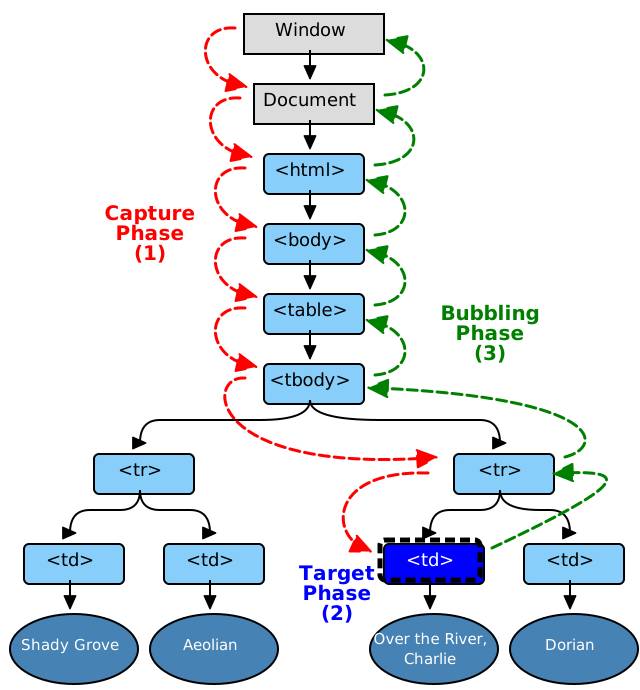
addEventListener에서 세번째 인자를 true로 하게 되면 캡처링에서 event를 캐치할 수 있고, false거나 생략시에는 타겟 단계와 버블링에서 event를 캐치할 수 있다.
<!DOCTYPE html>
<html lang="en">
  <body>
    <p>버블링과 캡처링<button>버튼</button></p>
    <script>
      document.body.addEventListener("click", () => {
        console.log("body")
      })
      document.querySelector("p").addEventListener(
        "click",
        () => {
          console.log("pagragraph")
        },
        true
      )
      document.querySelector("button").addEventListener("click", () => {
        console.log("button")
      })
    </script>
  </body>
</html>

// 결과: // paragraph // button // body
위 코드를 보면 두 번째 이벤트 핸들러의 세번째 인자가 true여서 캡처링 과정에서 이벤트를 캐치하고, 나머지는 타겟이나 버블링 과정에서 이벤트를 캐치하는 상황이다. 그렇기 때문에 캡처링에서 이벤트를 캐치하는 paragraph가 먼저 호출되고 두 번째로 타겟 단계인 button, 마지막으로 버블링 과정에서 body가 호출되는 순서로 나타난다.
캡처링, 타겟, 버블링의 이벤트 흐름을 이해하면서 이벤트가 상위 DOM요소에서 캐치될 수 있다는 것을 알 수 있다. 이점을 활용하여 일일이 모든 자식에게 이벤트핸들러를 연결하는 것이 아니라 부모요소에 이벤트 핸들러를 연결하는 이벤트 위임에 대해 알아보자.
이벤트 위임
<!DOCTYPE html>
<html lang="en">
  <head>
    <style>
      #fruits {
        display: flex;
        list-style-type: none;
        padding: 0;
      }
      #fruits li {
        width: 100px;
        cursor: pointer;
      }
      #fruits .active {
        color: red;
        text-decoration: underline;
      }
    </style>
  </head>
  <body>
    <nav>
      <ul id="fruits">
        <li id="apple" class="active">Apple</li>
        <li id="banana">banana</li>
        <li id="orange">orange</li>
      </ul>
    </nav>
    <div>선택된 아이템: <em class="msg">apple</em></div>
    <script>
      const \$fruits = document.getElementById("fruits")
      const \$msg = document.querySelector(".msg")

      function activate({ target }) {
        ;[...\$fruits.children].forEach(\$fruit => {
          \$fruit.classList.toggle("active", \$fruit === target)
          \$msg.textContent = target.id
        })
      }

      document.getElementById("apple").onclick = activate
      document.getElementById("banana").onclick = activate
      document.getElementById("orange").onclick = activate
    </script>
  </body>
</html>
위 코드를 보면 activate라는 함수를 li태그마다 이벤트 핸들러로 연결해주고 있다. 하지만 요소가 동적으로 정해지거나 여러 개가 된다면 일일이 자식 요소에 이벤트 핸들러를 붙여 주는 것은 비효율적이다. 이를 해결하기 위해서 부모인 ul에 이벤트 핸들러를 등록해 해결할 수 있다.
<!DOCTYPE html>
<html lang="en">
  <head>
    <style>
      #fruits {
        display: flex;
        list-style-type: none;
        padding: 0;
      }
      #fruits li {
        width: 100px;
        cursor: pointer;
      }
      #fruits .active {
        color: red;
        text-decoration: underline;
      }
    </style>
  </head>
  <body>
    <nav>
      <ul id="fruits">
        <li id="apple" class="active">Apple</li>
        <li id="banana">banana</li>
        <li id="orange">orange</li>
      </ul>
    </nav>
    <div>선택된 아이템: <em class="msg">apple</em></div>
    <script>
      const \$fruits = document.getElementById("fruits")
      const \$msg = document.querySelector(".msg")

      function activate({ target }) {
        if (!target.matches("#fruits > li")) return

        ;[...\$fruits.children].forEach(\$fruit => {
          \$fruit.classList.toggle("active", \$fruit === target)
          \$msg.textContent = target.id
        })
      }
      \$fruits.onclick = activate
    </script>
  </body>
</html>
위코드에서는 activate가 ul에만 등록이 되었다. 상위 DOM요소에서 자식 요소의 event를 처리하기 위해서는 해당 이벤트가 자식에서 발생한 이벤트가 맞는지 우선 체크해야 하기 때문에 if (!target.matches('#fruits > li')) return;로 먼저 확인하고 각 자식 요소에 처리해 줄 수 있다. 버블링을 이용한 이벤트 위임을 이용하면 코드 중복을 줄일 수 있다.
🙅♂️ 이벤트 멈춰 PreventDefault()와 StopPropagation()
preventDefault()는 이벤트의 메소드로 DOM요소의 기본 동작을 막는 역할을 한다. 주로 form으로 POST요청을 보낼 때 새로 고침이 일어나게 되는데, SPA에서는 새로고침을 할 필요가 없기 때문에 이러한 기본 동작을 막기 위해 preventDefault()를 사용한다.
<!DOCTYPE html>
<html lang="en">
  <body>
    <a href="https://google.com">go</a>
    <input type="checkbox" />
    <form><button>제출</button></form>
    <script>
      document.querySelector("a").onclick = e => {
        e.preventDefault()
      }
      document.querySelector("input[type=checkbox]").onclick = e => {
        e.preventDefault()
      }
      document.querySelector("form").onsubmit = e => {
        e.preventDefault()
      }
    </script>
  </body>
</html>
위 코드에서 a태그의 기본 동작인 페이지 이동을 막고, checkbox input의 기본 동작인 체크,해제를 막는다.
stopPropagation은 이벤트 전파를 중지 시키는 방법으로 해당 이벤트를 부모 요소로 버블링 되지 않게 막는다. 타겟 과정에서만 이벤트를 캐치하고 싶을 때 사용할 수 있지만 이벤트 흐름을 막는 것이기 때문에 예상치 못한 에러가 발생할 수 있어 조심해서 사용해야 한다.
<!DOCTYPE html>
<html lang="en">
  <body>
    <div class="container">
      <button class="btn1">button1</button>
      <button class="btn2">btn2</button>
      <button class="btn3">btn3</button>
    </div>
    <script>
      document.querySelector(".container").onclick = ({ target }) => {
        if (!target.matches(".container>button")) return
        target.style.color = "red"
      }

      document.querySelector(".btn2").onclick = e => {
        e.stopPropagation()
        e.target.style.color = "blue"
      }
    </script>
  </body>
</html>
위 코드를 보면 btn1,2,3 모두 클릭 시 글자색이 빨간색으로 변해야 하지만 btn2의 stopPropagation()으로 btn2의 이벤트는 부모로 버블링되지 않아 위임이 되지 않고 파란색으로 처리되는 것을 볼 수 있다.
💡 Event 핸들러의 this
이벤트 핸들러 속성으로 전달되거나 addEventListener()로 등록된 함수 선언식의 this는 이벤트를 바인딩한 요소, event.currentTarget와 같다.
<!DOCTYPE html>
<html lang="en">
  <body>
    <button>click me</button>
    <script>
      const btn = document.querySelector("button")
      const handleClick = e => {
        console.log(e.currentTarget) // <button>click me</button>
        console.log(this) // <button>click me</button>
        console.log(this === e.currentTarget) // true
      }
      btn.onclick = handleClick

      btn.addEventListener("click", handleClick)
    </script>
  </body>
</html>
하지만 함수 선언식이 아닌 화살표 함수의 this는 화살표 함수 자체적으로 this를 가질 수 없기 때문에 상위스코프의 this를 참조한다.
<!DOCTYPE html>
<html lang="en">
  <body>
    <button>click me</button>
    <script>
      const btn = document.querySelector("button")
      const handleClick = e => {
        console.log(e.currentTarget) // <button>click me</button>
        console.log(this) // Window
        console.log(this === e.currentTarget) // false
      }
      btn.onclick = handleClick
      btn.addEventListener("click", handleClick)
    </script>
  </body>
</html>
이러한 차이는 클래스의 이벤트 핸들러에서 this를 바인딩을 할 때 주의해야 할 점이다.
<!DOCTYPE html>
<html lang="en">
  <body>
    <button class="btn">0</button>
    <script>
      class App {
        constructor() {
          this.\$btn = document.querySelector(".btn")
          this.count = 0
          // this.\$btn.onclick = this.increase.bind(this);
          this.\$btn.onclick = this.increase
        }
        increase() {
          console.log(this) // <button class="btn">0</button>
          this.\$btn.textContent = ++this.count // Uncaught TypeError: Cannot set properties of undefined (setting 'textContent')
        }
      }
      new App()
    </script>
  </body>
</html>
위 코드에서 increase는 이벤트 핸들러로 등록되어있기 때문에 this가 class로 만들어질 instance를 가리키는 게 아니라 이벤트를 바인딩한 DOM 요소 this.\$btn를 가리킨다. 그렇기 때문에 this.\$btn.textContent는 this.\$btn.\$btn.textContent와 같아서 에러가 발생한다.
this를 인스턴스로 바인딩 시켜주기 위해서는 함수에 직접 bind로 명시적으로 정해주거나 arrow function을 이용해서 class field의 this를 메소드에 참조하게 할 수 있다.
[bind로 this 바인딩]
<!DOCTYPE html>
<html lang="en">
  <body>
    <button class="btn">0</button>
    <script>
      class App {
        constructor() {
          this.\$btn = document.querySelector(".btn")
          this.count = 0
          this.\$btn.onclick = this.increase.bind(this)
        }
        increase() {
          console.log(this) // App
          this.\$btn.textContent = ++this.count
        }
      }
      new App()
    </script>
  </body>
</html>
[arrow function]
<!DOCTYPE html>
<html lang="en">
  <body>
    <button class="btn">0</button>
    <script>
      class App {
        constructor() {
          this.\$btn = document.querySelector(".btn")
          this.count = 0
          this.\$btn.onclick = this.increase
        }
        increase = () => (this.\$btn.textContent = ++this.count)
      }
      new App()
    </script>
  </body>
</html>
마치며
이벤트를 공부하면서 이전에 마주했던 이벤트 핸들러 내부의 this 바인딩 문제를 제대로 이해할 수 있었고, 이벤트 전파와 위임에 대해서도 바르게 알 수 있는 시간이었다.
[참조]